Step by Step
Create a checklist you can use again.
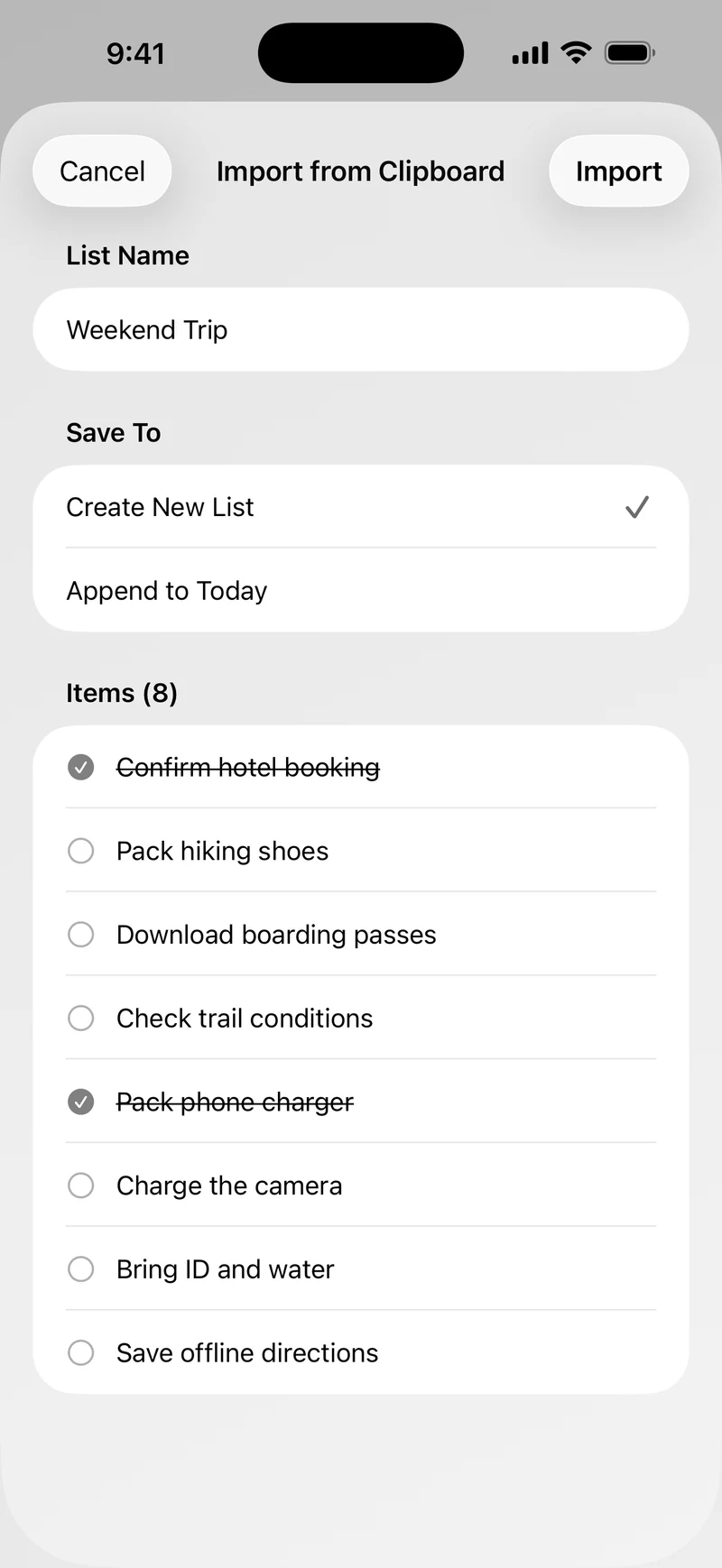
Already have the items in a conversation? Follow the ChatGPT checklist import guide to copy, preview, and save them before reusing the list.
Create a list for one repeatable job.
Give it a clear name such as Weekly Groceries, Weekend Packing, Closing Routine, or Monthly Review. A focused list is easier to reset and reuse than one list containing unrelated tasks.
Add the items you normally need.
Enter each item once. You can drag items into a useful order, pin the most important ones, or sort the list when that makes it easier to follow.
Tap the dots while you work.
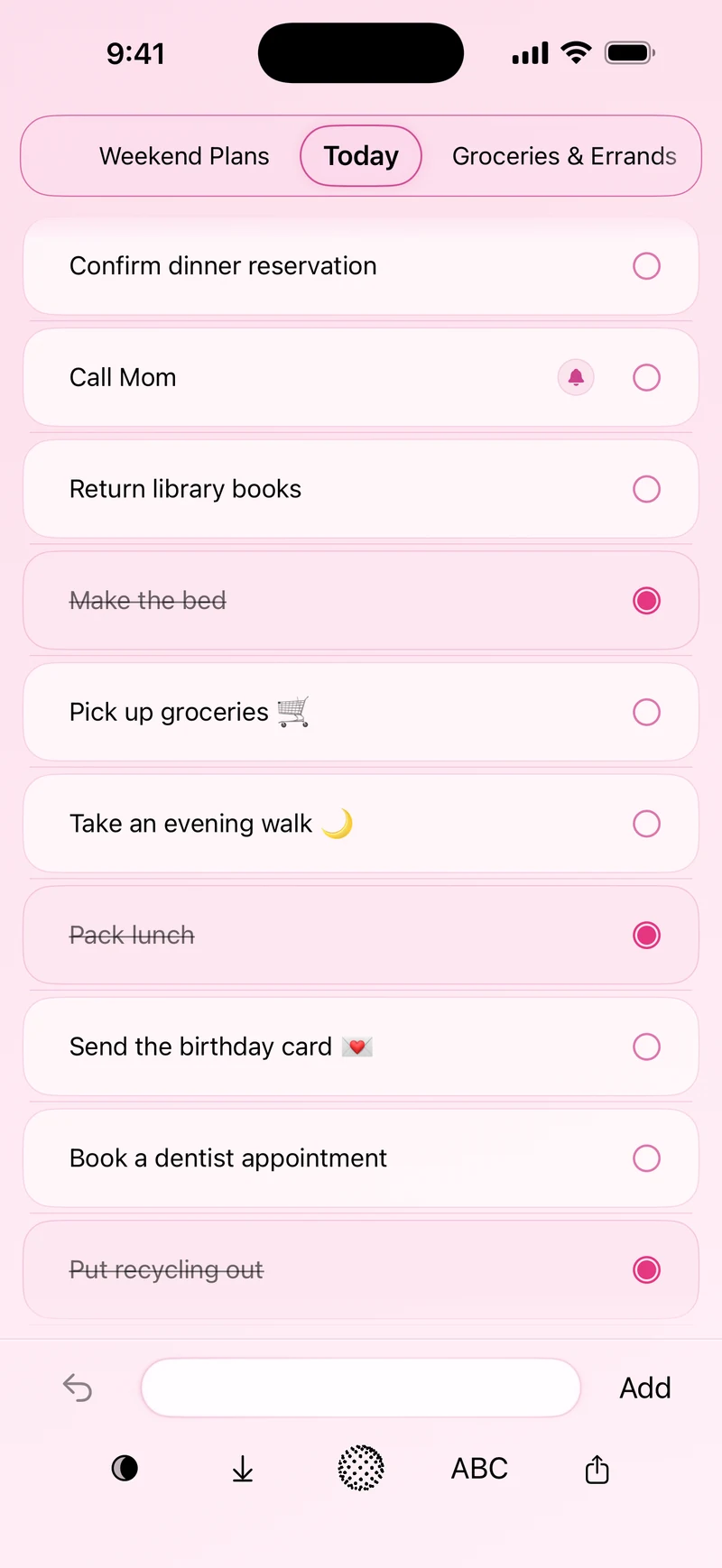
Each dot shows whether an item is still to-do or complete. The underlying item remains in the list, ready for the next time you need it.
Choose Reset Dots when the cycle is complete.
Tap the DotList button, then choose Reset Dots. Every item returns to to-do while the list name, item text, order, and pinned items stay available.
Use the same checklist again.
Start the next shopping trip, packing session, or routine with the list already built. If you reset it by mistake, DotList's Undo support can restore the recent change.
Useful Examples
What works well as a reusable checklist?
Groceries and restocking
Keep regular household items in one list, mark what you buy, and reset the dots before the next trip.
Packing
Reuse the same essentials list for work trips, weekends away, camping, or a child's overnight bag.
Opening and closing routines
Keep a consistent order for tasks that need to happen at the beginning or end of a shift or day.
Recurring work
Track the same review, preparation, or handoff steps without rewriting them for every cycle.
Keep It Useful
A good reusable checklist should stay easy to scan.
- Use short, specific item names.
- Arrange items in the order you usually complete them.
- Pin anything that should remain easy to find.
- Add or remove items when the real routine changes.
- Use reminders only for items that genuinely need a time-based alert.
Questions
Reusable checklist FAQ
Does Reset Dots delete my checklist?
No. It returns the items to to-do so the same list can be used again.
Can I undo a reset?
Yes. DotList supports Undo for recent changes, including Reset Dots.
Do I need an account?
No. DotList does not require an account, and ordinary list content is stored on your device.