Copy, preview, and save your list.
Draft and copy the checklist.
Ask ChatGPT for a short title followed by one item per line, without introductions or category headings. Review the suggestions for your own needs, then copy the title and items together. DotList uses the first line as the list name.
Weekend Packing
Toothbrush
Phone charger
Walking shoes
Socks
Water bottle
Jacket
This simple packing example is ready to select and copy. Add anything else your trip requires.
Open and review the import.
In DotList, open your destination list if you want to add to it. Tap the globe-shaped DotList Menu button, then Lists → Import from Clipboard.
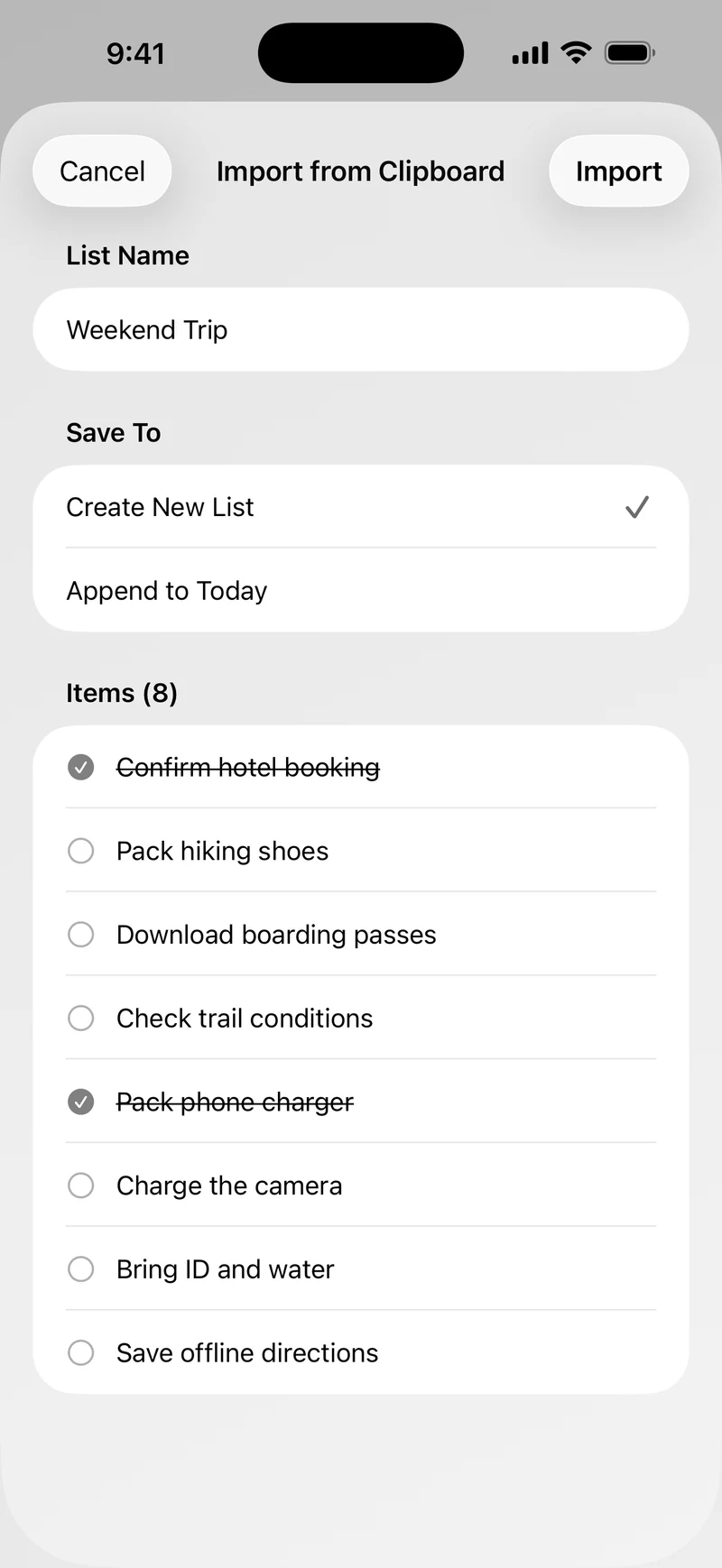
Check List Name and Items. Edit the text, toggle completion dots, or swipe to delete unwanted items. If the formatting needs more work, tap Cancel, simplify the original text, and copy it again.
Save it, then reuse it.
Under Save To, choose Create New List or Append to the currently open list, then tap Import.
Tap the dots as you finish items. For the next trip or routine, choose Reset Dots from DotList Menu. Your items return to to-do without being deleted.
DotList 3.2 includes three lists. You can append to an existing list; creating another beyond that allowance requires the optional one-time Pro upgrade.
The same approach works for groceries, packing, or recurring routines, including lists copied from notes and messages. Keep item names short and check the preview before importing.
This is a manual copy-and-import workflow. ChatGPT does not connect to DotList, and later changes to your conversation do not automatically update the saved checklist.
For more ways to organize and reset your list, read the reusable checklist guide.