Step by Step
Set a reminder on one checklist item.
Open the list containing the item.
Reminders belong to individual items, so a list can contain ordinary checklist items alongside the few items that need a specific alert.
Swipe right on the item and choose Reminder.
DotList opens the reminder editor for that item. You can keep the item text as the reminder title or adjust the title and add optional notes.
Choose the first date and time.
For a one-time reminder, this is the only alert. For a repeating reminder, it becomes the first alert in the schedule.
Select a repeat schedule.
Choose daily, weekly, monthly, or Custom. A custom schedule lets you choose a number of days between reminders when the standard choices do not fit.
Save and allow notifications.
DotList can save the reminder even when notifications are off, but your iPhone or iPad must allow DotList notifications for an alert to appear.
Stay Organized
View and manage reminders in one place.
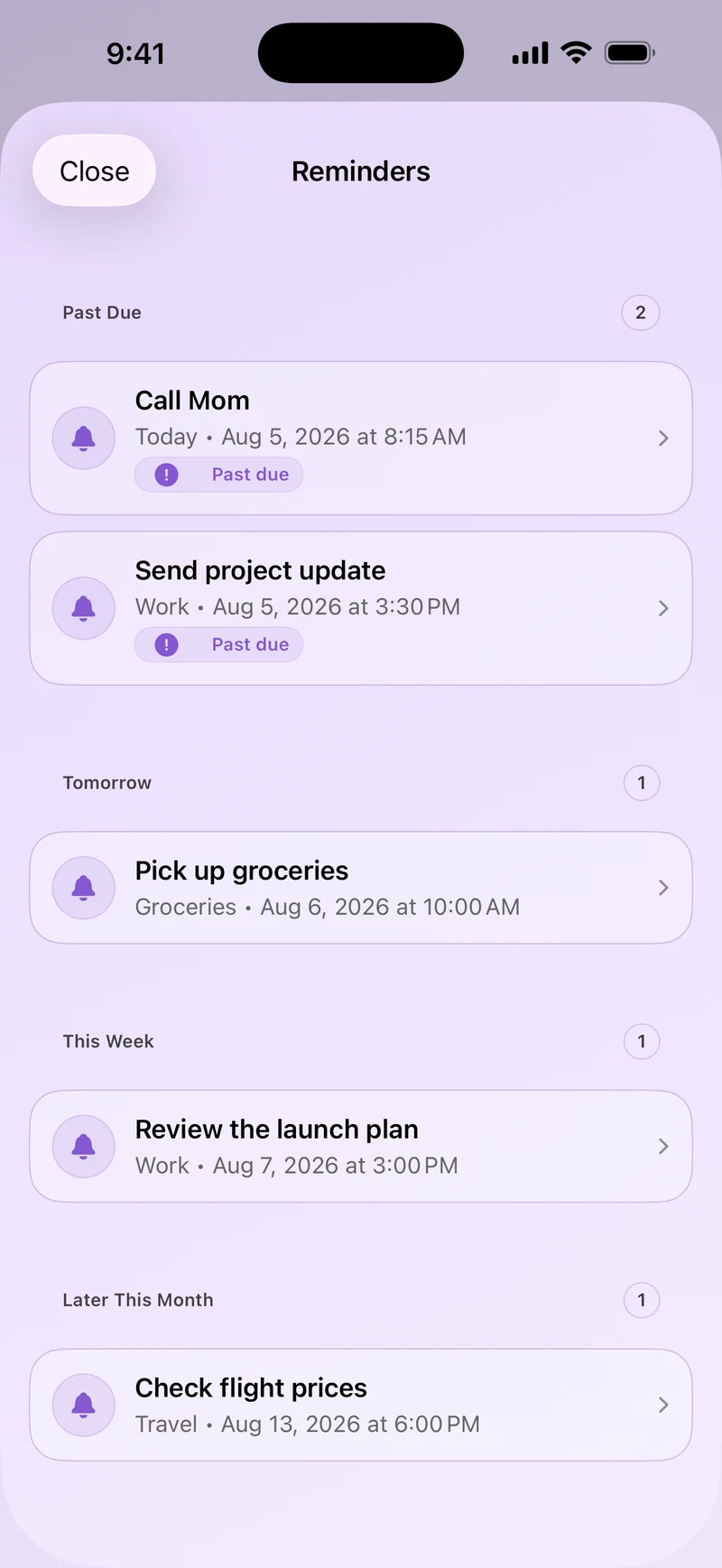
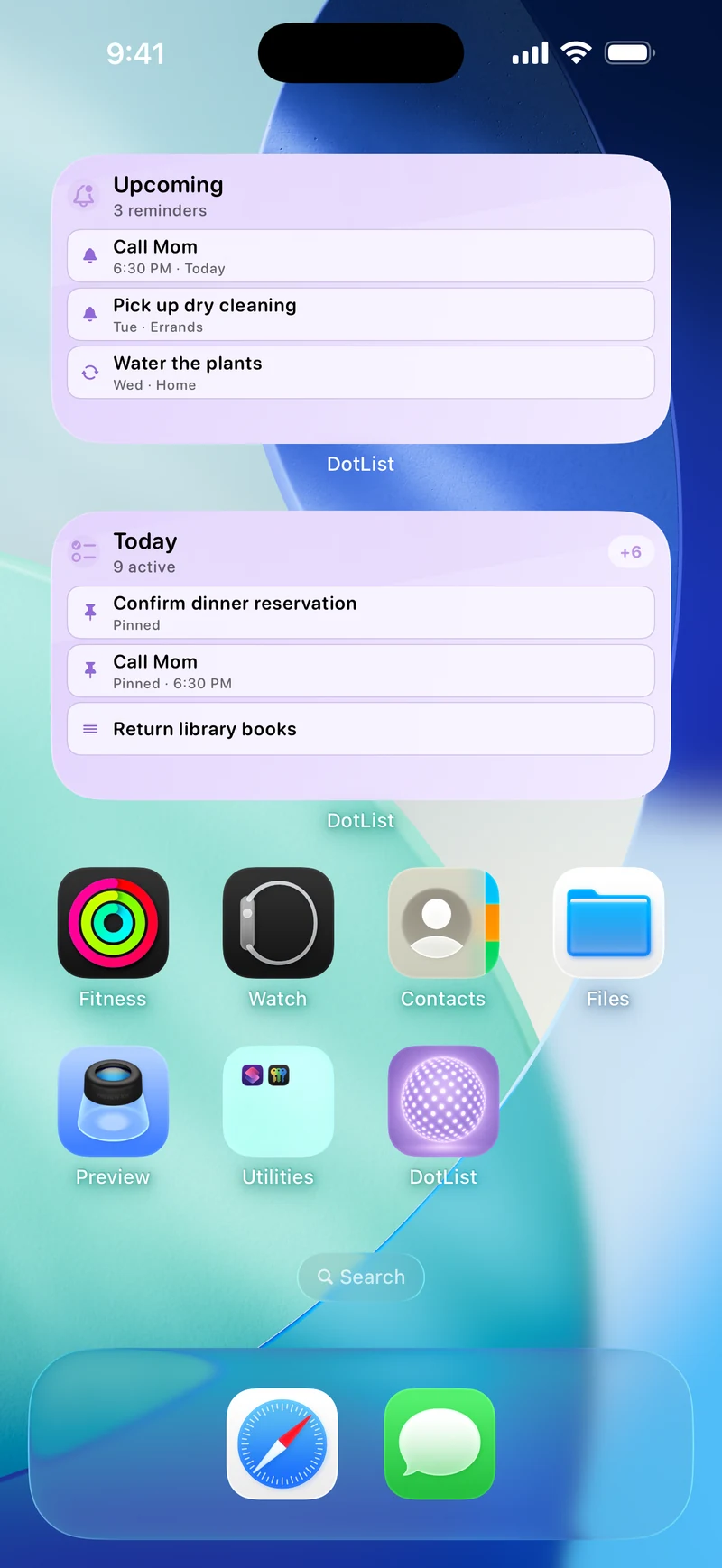
Open the DotList menu and choose Reminders to see upcoming alerts grouped by date. From there, select a reminder to change its title, notes, date, repeat schedule, or enabled status. You can also return to an item and swipe right again to edit its reminder.
The free version of DotList includes reminders for up to three items. DotList Pro removes the reminder limit with an optional one-time purchase; there is no subscription.
Useful Examples
When should a checklist item repeat?
Daily
Medication, vitamins, closing tasks, feeding a pet, or another item that happens every day.
Weekly
Taking out bins, reviewing a plan, preparing a meeting agenda, or checking household supplies.
Monthly
Changing a filter, reviewing a budget, submitting a recurring report, or checking a subscription.
Custom
Any routine that needs a set number of days between alerts rather than a calendar-based interval.
Keep Alerts Useful
Use reminders for the items that truly need a time.
- Give the reminder a title that makes sense outside the app.
- Use notes only when the notification needs extra context.
- Choose the first alert carefully because it anchors the repeating schedule.
- Disable or remove reminders that no longer need to interrupt you.
- Check iOS notification settings if a saved reminder does not display an alert.
Questions
Repeating reminder FAQ
Can I create a one-time reminder?
Yes. Leave Repeat set to Never and choose the date and time for the single alert.
Can I use an interval other than daily, weekly, or monthly?
Yes. Choose Custom and select the number of days between reminders.
Why is my reminder saved but not alerting me?
Check whether notifications are enabled for DotList in iOS Settings. A reminder can remain saved even when alerts are off.